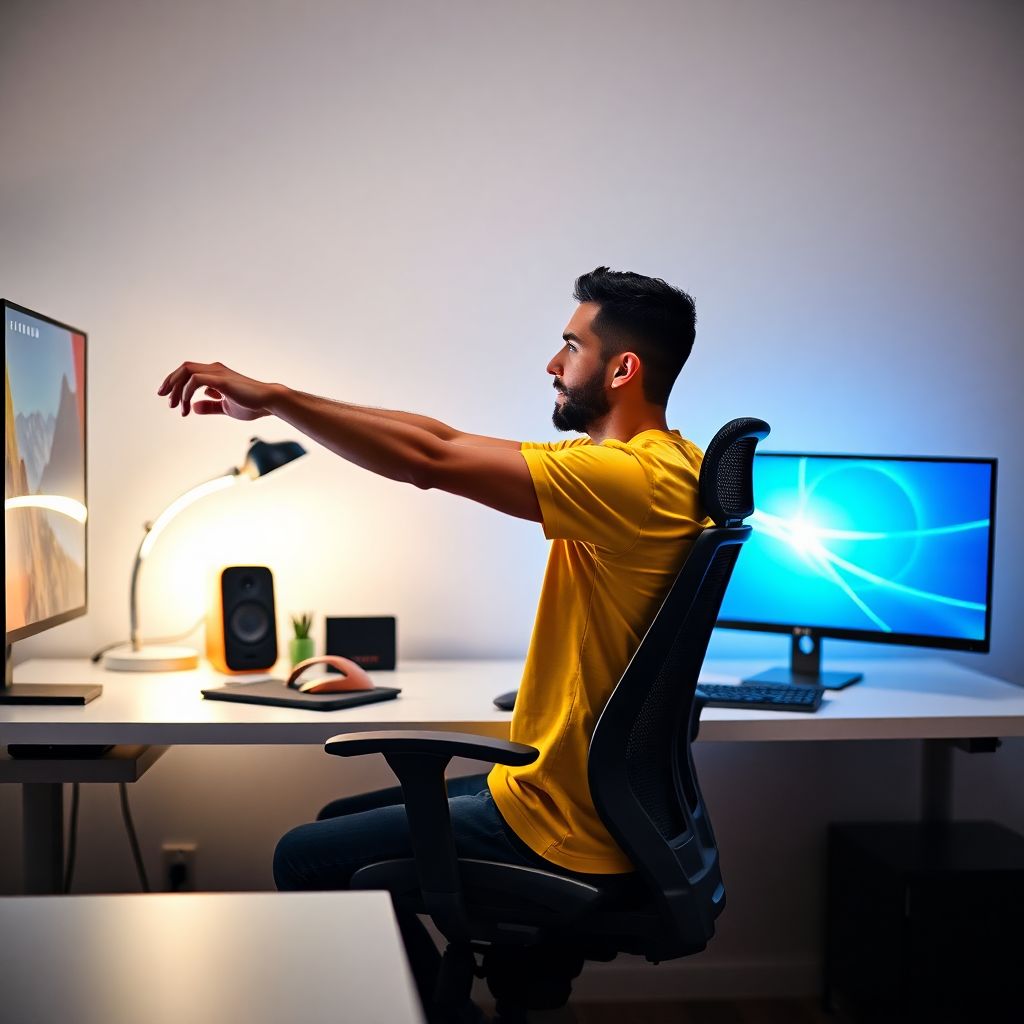
A healthy gamer setup for Brazilian players means neutral posture in a good chair, correct desk and monitor height, balanced LED lighting, and scheduled active breaks. Focus on: feet supported, relaxed shoulders, straight wrists, eyes level with the top of the screen, and short, frequent pauses to move and stretch.
Essential principles for a healthy gamer setup
- Keep joints in neutral angles: hips, knees and elbows roughly at right angles, wrists straight and relaxed.
- Bring the setup to your body: adjust chair, desk and monitor instead of bending or twisting yourself.
- Use supportive surfaces: backrest, armrests, foot rest and wrist rests when genuinely needed.
- Control light and glare with indirect lighting and a consistent, moderate brightness across the room.
- Insert microbreaks every few minutes, plus longer breaks each hour with simple stretches.
- Protect ears and focus with reasonable sound levels and occasional silence from headsets.
- Adapt principles to your space, whether a compact corner or a full multi-monitor competitive rig.
Choosing the right chair and maintaining posture under long sessions
A good chair and posture strategy helps most gamers who spend repeated sessions of 30 minutes or more at the computer or console. It is especially important if you grind ranked matches, stream, or work and game from the same home office desk.
First priority is a stable, adjustable chair. A cadeira gamer ergonômica para computador is useful only when it lets you change seat height, backrest angle and armrest height so you can stay neutral, not just because it looks cool.
When you should not rely only on chair adjustment:
- If you already have pain, tingling or numbness in back, neck, wrists or legs: consult a health professional before long gaming sessions.
- If your feet cannot reach the floor even at the lowest setting: add a solid footrest instead of lowering the desk too much.
- If your chair forces your lower back into exaggerated curvature or no support at all: add a small pillow or consider a different model.
Target posture guidelines for typical PC gaming:
- Seat height: feet flat, knees close to hip height, not significantly higher or lower.
- Back: contact with backrest, especially the lower back; slight recline is fine if you do not crane your neck.
- Armrests: allow shoulders to relax, elbows near body, forearms roughly parallel to the floor.
- Hips: sit back in the chair so the backrest supports you; avoid perching at the edge for long periods.
For console or controller gaming on sofa, try to recreate the same principles: support your lower back with a cushion, keep feet on the floor or a small stool, and avoid slouching or twisting toward the TV for extended time.
Desk, monitor and multi-screen alignment for neutral neck and eyes
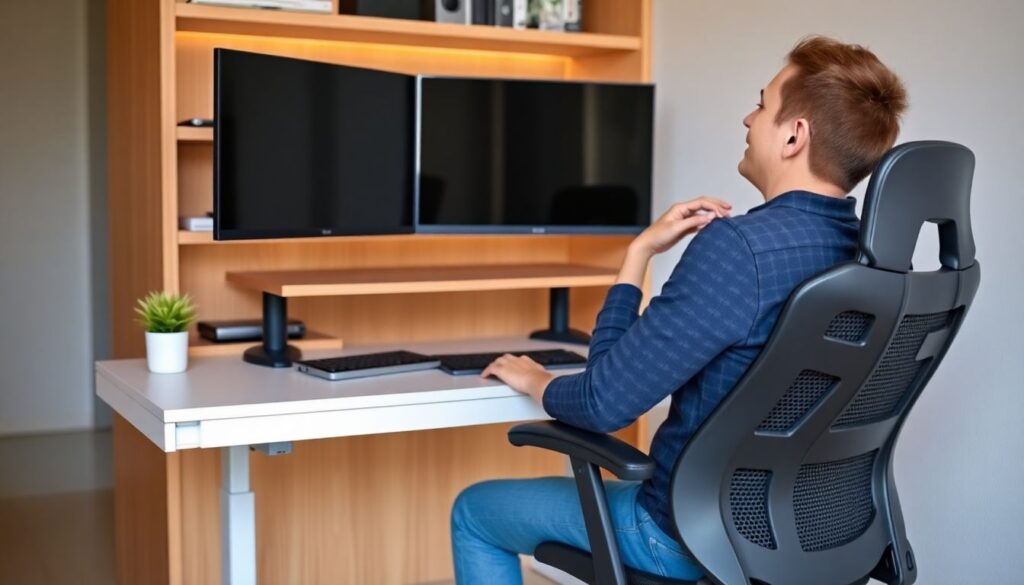
To set up a safe visual and neck position, you need some basic tools and adjustable elements. This applies whether you use a simple desk or the melhor mesa gamer ajustável para home office in a compact Brazilian apartment.
- Height-adjustable desk, or at least a desk plus monitor riser or stack of stable books.
- Chair with height adjustment so elbow level can roughly match desk height.
- Monitor gamer com ajuste de altura e ergonomia, or a separate monitor arm or riser platform.
- Measuring tape or a rough hand-span method to estimate viewing distance.
- Optional: additional monitor arms or stands if you use multi-screen setups.
Monitor and desk alignment guidelines:
- Desk height: top surface around elbow height when you sit upright, shoulders relaxed.
- Primary monitor distance: roughly an arm's length from your eyes, adjusted for your vision comfort.
- Screen height: the top visible line of text or HUD slightly below or at eye level, so you look slightly downward.
- Center alignment: keep the primary screen directly in front of you, not off to one side.
For multi-monitor rigs used for streaming, chats and tools:
- Keep the main game monitor centered; place secondary screens to the side, angled toward you.
- Avoid constant head rotation; put frequently used information on the central or closest monitor.
- If space is small, prioritize one well-positioned main monitor instead of several cramped, misaligned screens.
Input devices: keyboards, mice and controllers that reduce strain
Before adjusting keyboards, mice and controllers, recognize main risks:
- Prolonged bent wrists can contribute to pain or nerve irritation over time.
- Excessive mouse grip force and high sensitivity swings can strain forearms and shoulders.
- Very wide keyboard plus mouse placement can pull shoulders outward and cause neck tension.
- Existing injuries or post-surgery conditions require medical advice before any intense gaming schedule.
-
Choose the right keyboard position and angle
Place the keyboard directly in front of you, close enough so elbows stay near your body. Keep wrists straight, not sharply bent up or down.
- Use keyboard feet only if it helps you see keys without bending wrists upward.
- Consider compact or tenkeyless layouts to bring mouse closer and reduce shoulder reach.
- If needed, use acessórios para ergonomia em setup gamer (apoio de pés и punho) such as a soft wrist rest, but do not press on it too hard.
-
Align the mouse with your shoulder and relax grip
Place the mouse at the same height as the keyboard and near its edge so your forearm stays roughly straight. Avoid reaching far out to the side.
- Adjust sensitivity so you can move across the screen without extreme wrist flicks.
- Move from the elbow and shoulder for larger movements; save tiny wrist motions for fine aim.
- Check that your forearm rests lightly on the desk or armrest, not hanging in mid-air.
-
Set up controllers to support hands and shoulders
When using a gamepad, rest forearms on your thighs, armrests or a cushion. Keep shoulders relaxed, not lifted toward your ears.
- Avoid holding controllers above shoulder height for long periods.
- If cable tension pulls your hands forward, add an extension or reroute the cable.
- Take short hand stretches between matches: open and close fingers, rotate wrists gently.
-
Fine-tune seating distance relative to devices
Slide your chair so that elbows are roughly under your shoulders and wrists rest near the keyboard edge without reaching. Adjust seat height if your wrists bend against the table edge.
- If the desk edge presses into your forearms, add a soft edge protector or shift devices slightly.
- For very small desks, prioritize central placement of keyboard and mouse; move other items away.
-
Review and adjust after test games
Play a few matches and notice any tension in wrists, forearms, shoulders or neck. Adjust one element at a time and re-test.
- If pain appears or worsens, reduce gaming duration and seek professional medical guidance.
- Recheck alignment whenever you change chair height, desk, or monitor position.
Lighting strategies to prevent eye fatigue and enhance visual clarity
Use this checklist to confirm that your lighting supports healthy, comfortable vision. Adjust gradually and test during both daytime and night sessions.
- The room is not completely dark; there is a soft, indirect ambient light behind or beside the screen.
- The monitor is not the single brightest object in the room by a huge margin; brightness is moderate and matched to surroundings.
- Any iluminação led para setup gamer profissional is placed out of direct line of sight, preferably reflected against walls or behind the monitor.
- There are no strong reflections of windows or lamps visible on the screen surface when you sit in your normal position.
- Natural light from windows is controlled with curtains or blinds, especially when the sun is behind your monitor or directly facing it.
- Color temperature is consistent: avoid mixing very cold blue light with very warm lights that constantly shift your perception.
- Text, HUD elements and minimaps are easy to read without leaning forward or squinting.
- Night gaming uses reduced blue-heavy brightness; monitor night modes or warmer color presets are activated when useful.
- You blink naturally and remember to look away from the screen at distant objects for a few seconds every so often.
- Smart RGB effects do not flash intensely near your eyes for extended periods; limit aggressive strobing to short, optional moments.
Designing effective active breaks: microbreaks, stretches and timers
Good pauses protect your body, but they must be planned. These are frequent mistakes that reduce the benefits of microbreaks and active rests.
- Waiting for pain as a signal to pause instead of scheduling short breaks before discomfort appears.
- Using every break only for another screen, such as phone scrolling, without changing posture or focusing eyes on distant points.
- Making rare, very long sessions of stretching instead of regular 30-60 second microbreaks between matches or during loading screens.
- Performing aggressive stretches that cause sharp pain or bouncing movements, especially in the neck and lower back.
- Ignoring legs and hips and stretching only wrists and fingers, even though you sit for long periods.
- Keeping timers too intrusive or stressful, causing you to disable them completely during ranked or tournament play.
- Skipping hydration during breaks, leading to headaches and concentration problems later in the session.
- Not adapting break frequency when you change game type, for example marathons in new titles or long grinding of repetitive tasks.
- Assuming short walks to the kitchen are enough physical activity to balance many hours of sitting.
- Resuming exactly the same posture after every break without checking whether you can sit a bit more upright or relaxed.
Environmental factors: air, hydration, sound and emergency ergonomics
Even in tight Brazilian apartments, you can adjust the environment with small but effective alternatives. Choose the combination that fits your space, budget and sensitivity.
- Minimalist low-cost adjustments: open windows when possible, use a simple fan for airflow, keep a reusable water bottle on the desk, and lower master volume or enable audio limiters to protect hearing.
- Compact-home optimization: if you cannot move the desk, rotate the chair and use a small footrest or cushion to achieve better leg angles; add a lightweight curtain or panel behind monitors to cut glare from nearby windows.
- Competitive and streaming setups: use moderate sound isolation panels instead of fully sealed rooms, schedule silent intervals without headsets, and keep a quick-access standing spot for short tactical breaks between matches.
- Emergency ergonomics when sharing space: if you must game at a kitchen or dining table, use portable accessories like a detachable monitor riser, a small lumbar cushion and apoios de pés e punho that you can store away after each session.
Practical answers to common setup risks and doubts
How often should I stand up during long gaming or streaming sessions?
Aim to stand up or walk briefly at least every 30-60 minutes, even during intense ranked or competitive play. Between full breaks, insert micro-movements such as shoulder rolls, neck rotations within a comfortable range and finger stretches during loading screens.
Is a gamer chair always better than an office chair for health?
No. A cadeira gamer ergonômica para computador helps only if it offers real adjustability and supports neutral posture. Many simple office chairs with good lumbar support and adjustable armrests are equal or better than flashy models with limited ergonomic features.
How high should I place my main monitor to avoid neck pain?
Position the monitor so the top of the visible image is roughly at or slightly below your eye level when you sit upright. If your monitor stand is too low, use a riser, stable books or a monitor arm to reach this height.
Can strong RGB lighting harm my eyes during night gaming?
Strong, direct RGB light and frequent flashing can increase eye fatigue and make it harder to fall asleep. Use indirec iluminação led para setup gamer profissional, aimed at walls or behind the desk, and avoid intense strobe or rapid color cycling near your direct line of sight.
What should I do if my wrists hurt after gaming?
First, reduce gaming time and check wrist posture: keep them straight, not bent, and relax your grip. Consider using acessórios para ergonomia em setup gamer (apoio de pés e punho) gently, and seek professional medical evaluation if pain persists, worsens or includes numbness or tingling.
Is a height-adjustable desk necessary for a healthy setup?
Not mandatory, but very helpful. The melhor mesa gamer ajustável para home office lets you fine-tune elbow height and alternate sitting and standing. If you cannot get one, prioritize a decent chair and monitor height adjustments to approximate neutral posture.
How can I protect my hearing while using a gaming headset for hours?
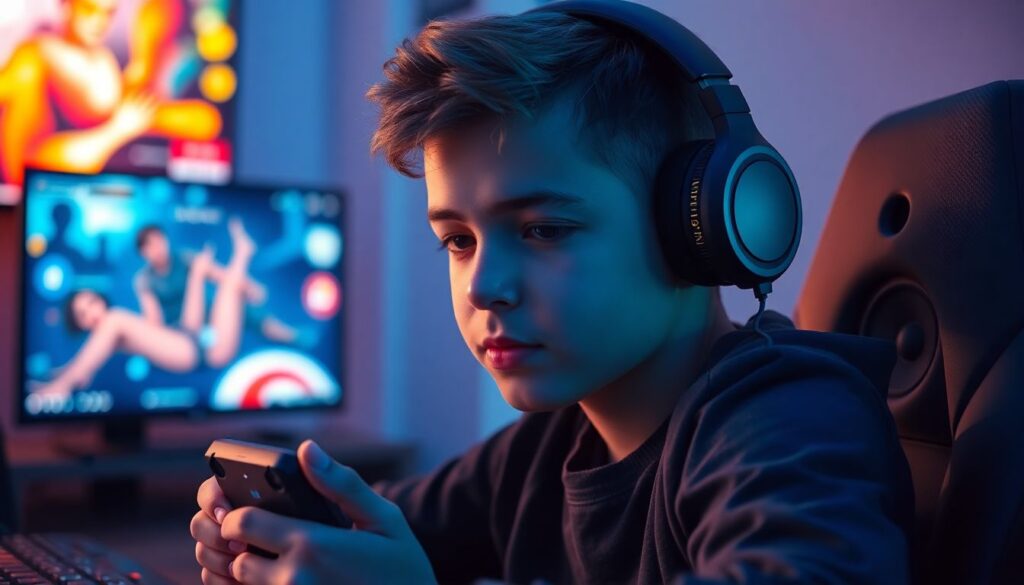
Keep volume at a moderate level where you can still hear external sounds slightly, and avoid long sessions at maximum volume. Schedule headset-free breaks, especially between matches, and consider in-game sound limiters or system-level volume caps to avoid accidental spikes.